Digital coloring for adults: the complete guide to getting started
Digital coloring for adults is the practice of filling in illustrations on a screen — a phone, tablet, or computer — instead of on paper with pencils and markers. You pick a color, tap a region, and the tool fills it in. There is no mess, no supplies to buy, and no space to clear. If you have ever wanted a creative hobby that fits into a lunch break or a quiet evening, this is one of the most accessible ones there is.
This guide walks you through everything you need: what digital coloring actually is, the tools that matter, how to choose your first pages and palettes, and how to make the hobby stick. You do not need art experience, a stylus, or an expensive tablet. You mostly need a phone and a few minutes.
What is digital coloring and why do adults love it?
Digital coloring means applying color to line art using touch, a stylus, or a mouse. Most apps and websites offer pre-made pages, and some let you import your own. You select a color, tap an enclosed region, and the tool fills it perfectly every time.
The appeal for adults is simple: it looks like a finished illustration without demanding drawing skill. The result is satisfying, the effort is low, and the process itself quiets a busy mind. Research on coloring and mental health suggests that focused, repetitive creative tasks can help lower stress, which is why many people treat digital coloring as a lightweight mindfulness practice rather than an art class.
What you need to start: almost nothing
The barrier to entry is genuinely tiny:
- A phone or tablet. Any modern device works. Your finger is enough for tap-to-fill mode.
- A coloring app or website. Browser-based tools like ColorsGoods let you start without installing anything or creating an account.
- Nothing else. No pencils, no sharpener, no paper. A stylus is optional and only matters if you plan to draw freehand.
If you already own a phone, you are ready to go.
Tap-to-fill vs freehand: which style fits you?
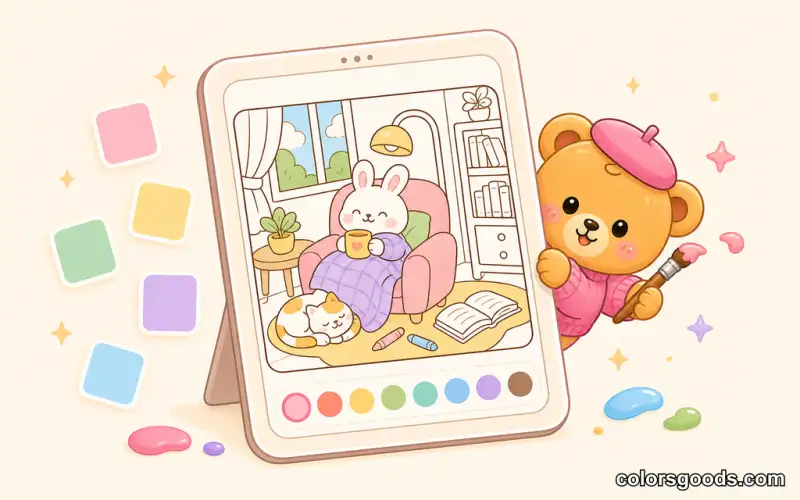
There are two main ways to color digitally, and most tools support both.
Tap-to-fill
You select a color and tap a closed region. The tool fills the whole area instantly. It is fast, clean, and impossible to mess up — perfect for relaxation and quick sessions.
Freehand
You draw directly on the page with your finger or a stylus, choosing your own strokes and blending. It feels closer to traditional art and gives you full creative control.
Most people start with tap-to-fill and explore freehand later. There is no wrong order. If you want to see both modes in action on a mobile device, read our guide to coloring online on your phone.
How to choose your first digital coloring tool
You do not need the most powerful app — you need one you will actually open. Here is what to check before committing:
| Factor | What to look for | |---|---| | Page library | Enough variety that you never run out of pages you enjoy | | Start speed | Able to color in under a minute, no forced sign-up | | Coloring modes | Tap-to-fill plus freehand, so you can switch as you grow | | Palettes | Curated palettes or an easy custom color picker | | Offline use | Nice to have for commutes and flights | | Cost | Free core experience; premium optional, never required |
Browser-based Progressive Web Apps (PWAs) score well on speed and convenience because they run in any browser and can be installed to your home screen. If you want a broader look at the landscape, our comparison of the best coloring apps of 2026 covers both browser tools and native apps.
Phone or tablet: which is better for coloring?
Both work well; the difference is comfort, not capability.
- Phone: always with you, perfect for 10-minute sessions. Pinch-to-zoom handles details, and tap-to-fill needs no precision at all.
- Tablet: a larger canvas feels more spacious, especially with a stylus. Better for longer, more involved pages.
- Computer: a mouse works for tap-to-fill, though freehand feels less natural than touch.
If you are unsure, start on the phone you already own. Upgrade only if the hobby sticks and you want a bigger canvas.
How to pick your first page and palette
Your first page should have clear outlines, a single main subject, and large open areas. Save the dense, highly detailed pages for later.
For colors, follow the "3-5 colors" rule: choose one dominant color for the largest areas, one or two supporting tones, one neutral, and one small accent. This small set keeps the page cohesive and removes decision fatigue. Warm tones (yellows, oranges, creams) feel cozy; cool tones (blues, greens, purples) feel calm; pastels feel soft and dreamy. Our guide on choosing color palettes for digital coloring explains each type with examples.
A simple workflow for your first session
- Zoom in on the area you are coloring. This reduces mistakes and makes small regions easy to tap.
- Fill the largest shapes first. The sky, a wall, a big piece of clothing. Instant progress keeps you motivated.
- Add midtones before highlights. A middle tone between dark and light keeps the page from looking harsh.
- Save highlights and details for last. Small bright areas — a lamp, a window, a flower — finish the composition.
- Take breaks. Sessions of 10 to 15 minutes feel more relaxing than long marathons.
For more structured practice, our coloring techniques for beginners guide walks through these steps in depth.
AI coloring pages: what they can and cannot do
Some tools now generate coloring pages with AI. You describe a scene — "a cat reading beside a rainy window, simple outlines" — and the tool produces a custom page you can color right away. This is genuinely useful when you want a specific subject that no pre-made library offers.
It helps to keep expectations realistic. AI results depend heavily on how specific your prompt is, and they sometimes need cleanup: awkward lines, extra clutter, or regions that do not close properly. AI generation works best as a complement to curated libraries, not a replacement. For a deeper look at how generation fits into the coloring workflow, see our guide on creating your own coloring pages.
Why digital coloring works as a stress-relief habit
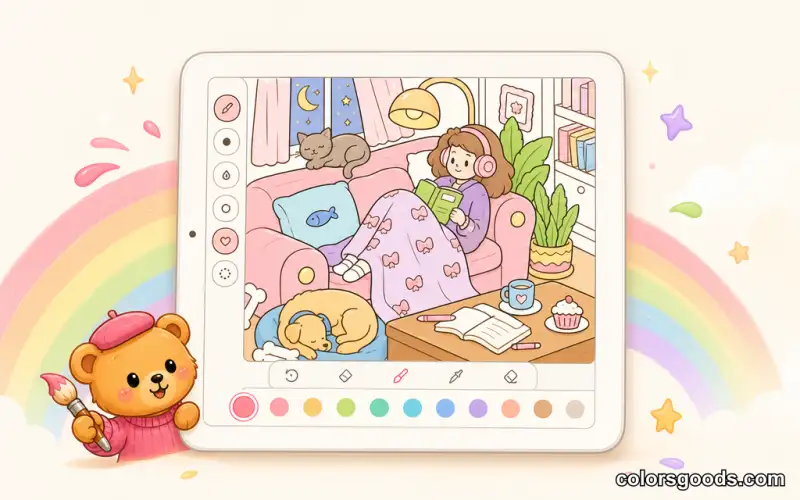
The practical benefits are hard to beat:
- No cleanup and no cost per page. You can color three times a day if you want to.
- Unlimited undo. Experiment freely; nothing is ruined permanently.
- Accessible. Tap-to-fill works for almost anyone, regardless of fine motor skills or art background.
- Portable. Waiting rooms, commutes, and bedtime all work.
If you want the full picture of how coloring supports emotional wellbeing, our guide to coloring for stress relief covers the science and the practice.
FAQ
Do I need a stylus for digital coloring?
No. Tap-to-fill works perfectly with your finger. A stylus only becomes useful if you want to draw freehand or color highly detailed areas with precision.
Is digital coloring as relaxing as coloring on paper?
Many people find it easier to relax with digital coloring because there is no pressure to be neat and no cost for mistakes. The undo button removes the fear that sometimes makes paper coloring stressful.
Can I color digitally for free?
Yes. Many tools, including ColorsGoods, offer a free core experience in the browser with no forced sign-up. Premium features are optional.
What should I do if a page feels overwhelming?
Switch to a page with larger areas and simpler shapes, and reduce your palette to three colors. Short, simple sessions build confidence faster than forcing yourself through complex pages.
Can I share or print my finished pages?
Most tools let you export the finished image. You can keep it in your gallery, print it as a poster, or share it with friends.
Conclusion
Digital coloring for adults is one of the easiest creative hobbies to start and one of the most pleasant to maintain. You need a phone, a tool, and a page you enjoy. Start with tap-to-fill, keep your palette small, and let the routine build itself one 10-minute session at a time.
Ready to try it? Open a simple page and start coloring right now — or, if you want a playful challenge with a pop-star twist, our guide to coloring pop star pages shows how to make those scenes shine.
Learn more about the project →
Colors Goods is researched, written, and reviewed by our small editorial team so every post stays clear, practical, and family-friendly.
Reviewed by Daniel Costa
Editorial contributor — app features and digital tools